The Auditor role is useful when external parties need to look at invoices in MediusFlow, but do not need to work on them. The Auditor role also gives access to the Business Log Reports. To grant a user the Auditor role, go to the User administration page and find the user on the list. Search using the different columns.
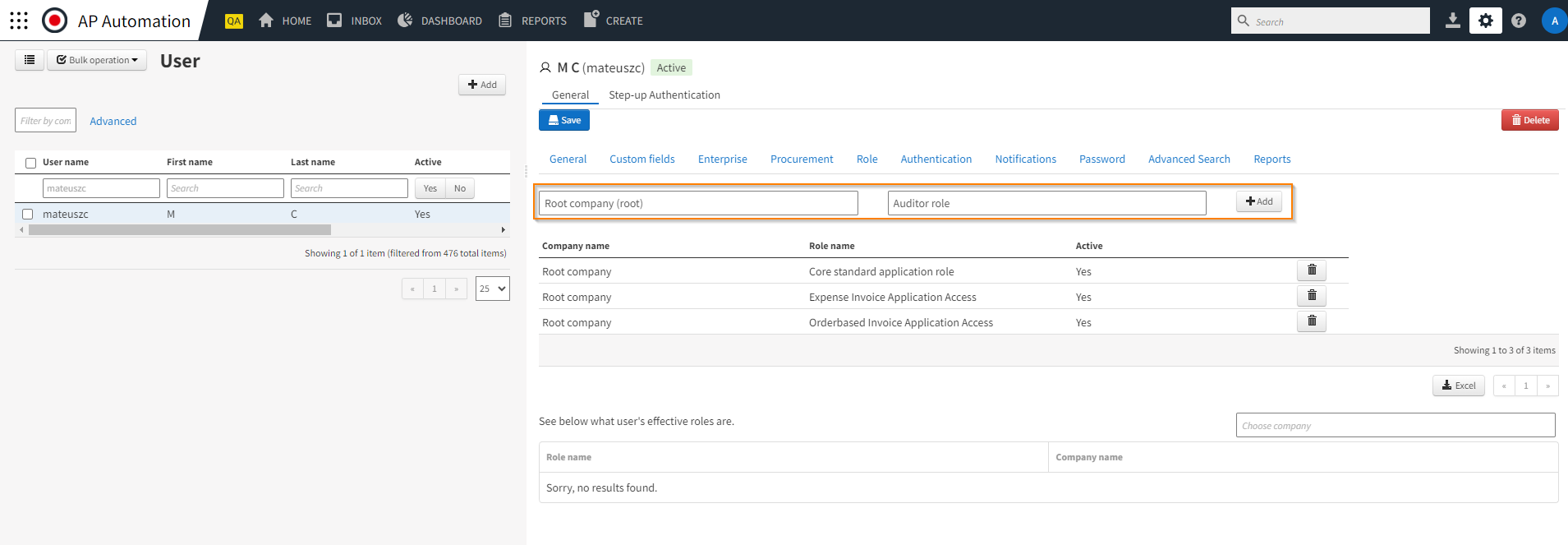
After finding the user you want to modify, go to the Roles tab, and in the Choose company box select the pertinent company. Specify the Auditor role in the Choose role box and click Add.
For the Auditor role to work correctly, you will also need to add the three roles below if they are not already added to the user:
Core standard application role
Orderbased invoice application access
Expense invoice application access
Note
User with the Auditor role will not see invoices in Inbox because they do not have any tasks connected to invoices assigned to them. Instead, the user will have to search for invoices manually.
The auditor can have other roles assigned, giving them other permissions in the system. However, the purpose of the Auditor role is for external parties to only analyze invoices, not perform tasks related to them.
If you want the user with the Auditor role to have access to a dashboard, you have to share it with them manually. You can also share the dashboard with the Auditor role instead of a specific user. Otherwise the user will have to use Advanced Search or the Reports tool to find information they are interested in.
For more information about the Auditor role, see Roles.
For more information about dashboards, see Dashboard.
For more information about the Business Log, see Business Log and Tracking.
Was this article helpful?
That’s Great!
Thank you for your feedback
Sorry! We couldn't be helpful
Thank you for your feedback
Feedback sent
We appreciate your effort and will try to fix the article