Once the auction has closed, you will then have the ability to award the business to one of the competing suppliers. To do this, follow the instructions below:
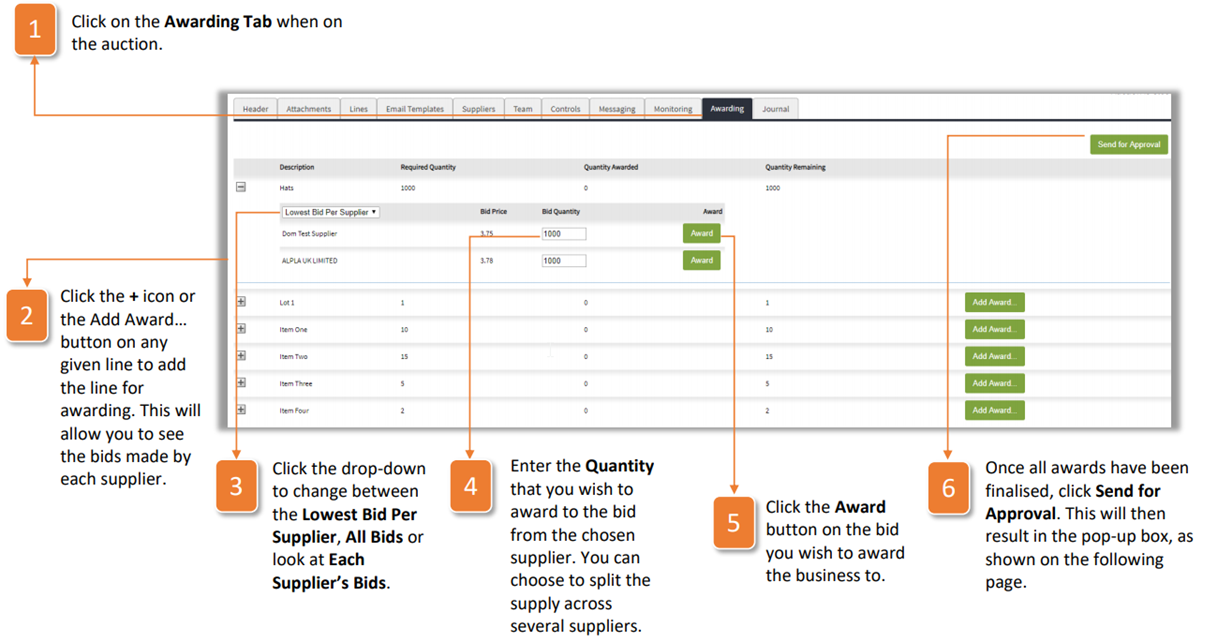
- Click on the Awarding Tab when on the auction.
- Click the + icon or the Add Award. button on any given line to add the line for awarding. This will allow you to see the bids made by each supplier.
- Click the drop-down to change between the Lowest Bid Per Supplier, All Bids or look at Each Supplier's Bids.
- Enter the Quantity that you wish to award to the bid from the chosen supplier. You can choose to split the supply across several suppliers.
- Click the Award button on the bid you wish to award the business to.
- Once all awards have been finalized, click Send for Approval. This will then result in the pop-up box, as shown on the following page.
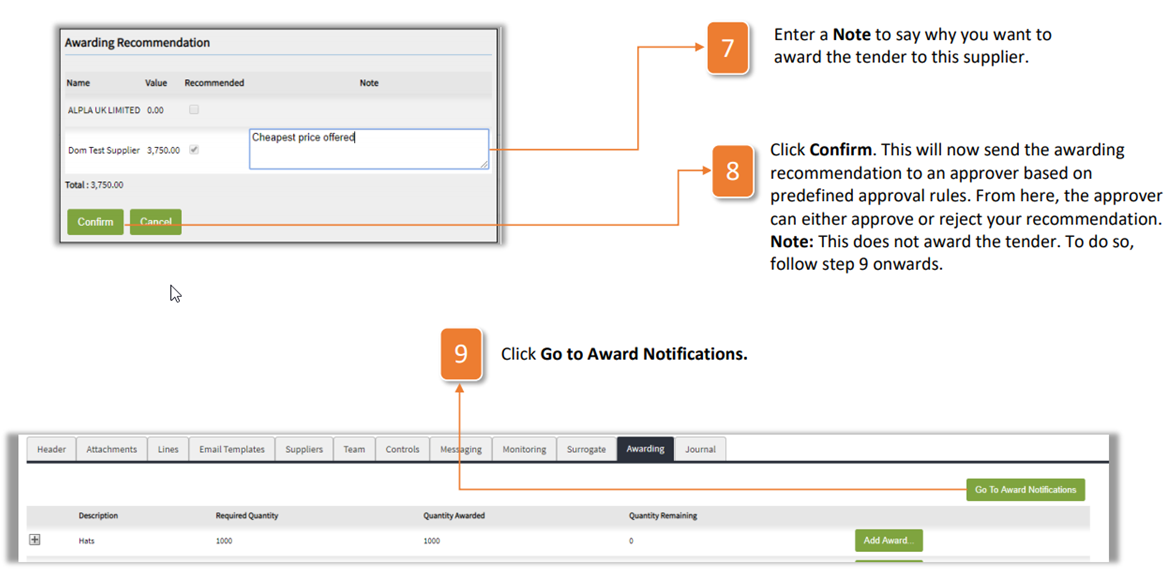
- Enter a Note to say why you want to award the tender to this supplier.
- Click Confirm. This will now send the awarding recommendation to an approver based on predefined approval rules. From here, the approver can either approve or reject your recommendation. Note: This does not award the tender. To do so, follow step 9 onwards.
- Click Go to Award Notifications.
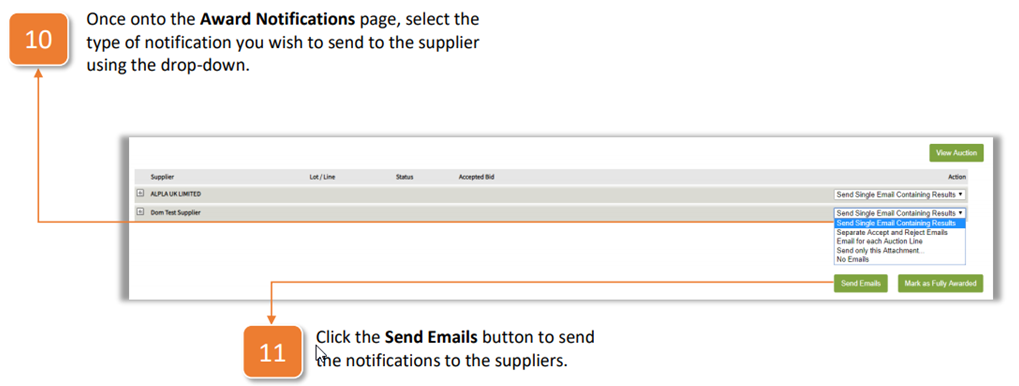
- Once onto the Award Notifications page, select the type of notification you wish to send to the supplier using the drop-down.
- Click the Send Emails button to send the notifications to the suppliers
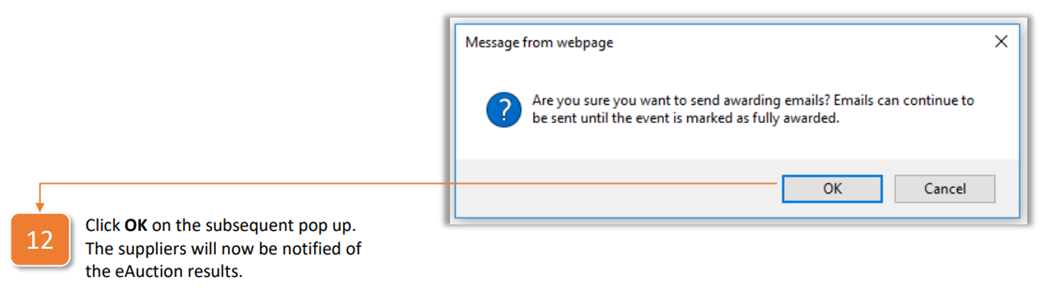
- Click OK on the subsequent pop up. The suppliers will now be notified of the eAuction results.
Was this article helpful?
That’s Great!
Thank you for your feedback
Sorry! We couldn't be helpful
Thank you for your feedback
Feedback sent
We appreciate your effort and will try to fix the article