The Documentation tab allows you to store all documents related to this contract. To add a document to a contract, use the following instructions.
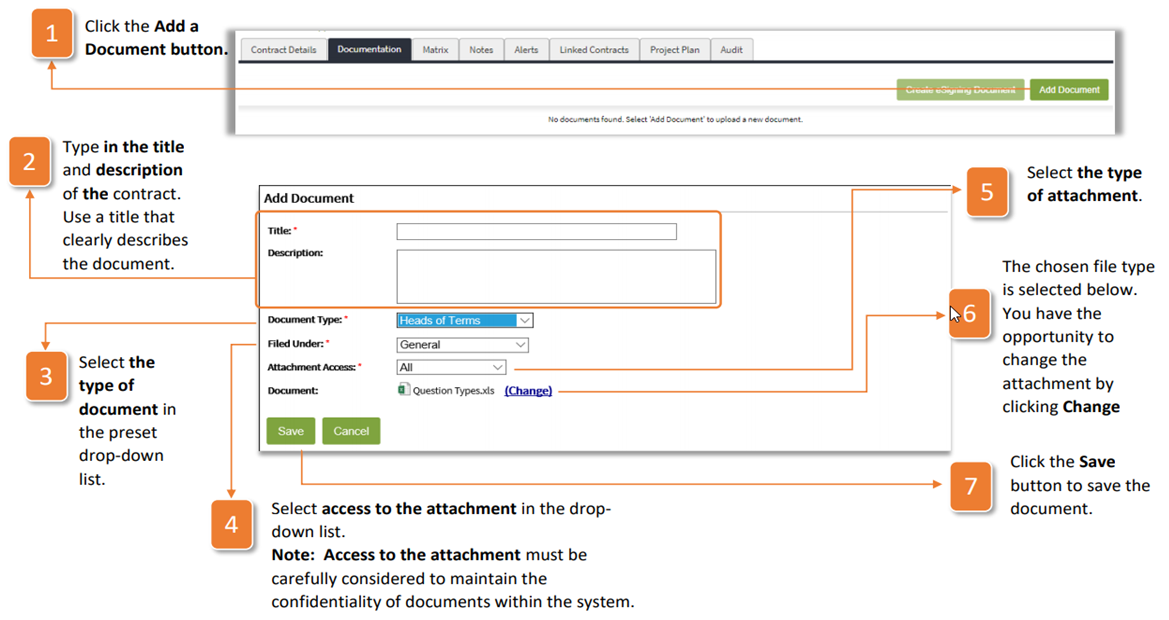
- Click the Add a Document button
- Type in the title and description of the contract. Use a title that clearly describes the document.
- Select the type of document in the preset drop-down list.
- Select access to the attachment in the dropdown list. Note: Access to the attachment must be carefully considered to maintain the confidentiality of documents within the system.
- Select the type of attachment.
- The chosen file type is selected below. You have the opportunity to change the attachment by clicking Change
- Click the Save button to save the document.
When a document has been saved, the attached documentation will appear.
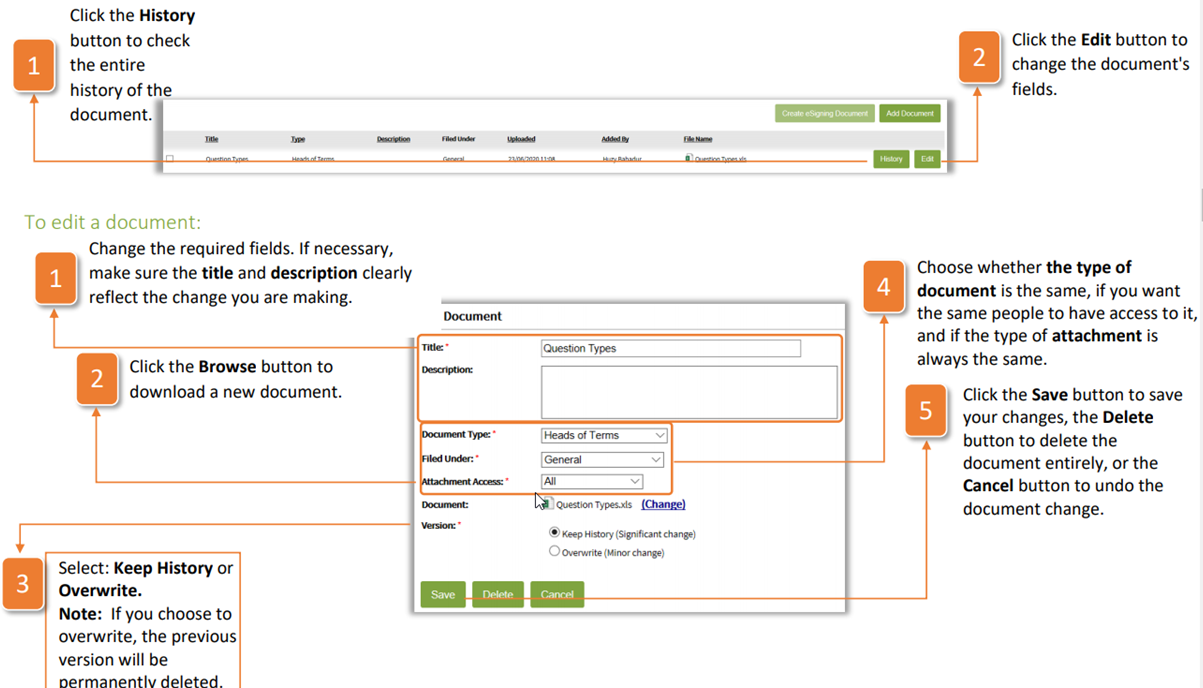
- Click the History button to check the entire history of the document.
- Click the Edit button to change the document's fields.
To edit a document:
- Change the required fields. If necessary, make sure the title and description clearly reflect the change you are making.
- Click the Browse button to download a new document.
- Select: Keep History or Overwrite. Note: If you choose to overwrite, the previous version will be permanently deleted.
- Choose whether the type of document is the same, if you want the same people to have access to it, and if the type of attachment is always the same.
- Click the Save button to save your changes, the Delete button to delete the document entirely, or the Cancel button to undo the document change.
Was this article helpful?
That’s Great!
Thank you for your feedback
Sorry! We couldn't be helpful
Thank you for your feedback
Feedback sent
We appreciate your effort and will try to fix the article