The Project Plan tab offers project management functionality, which is available in the app
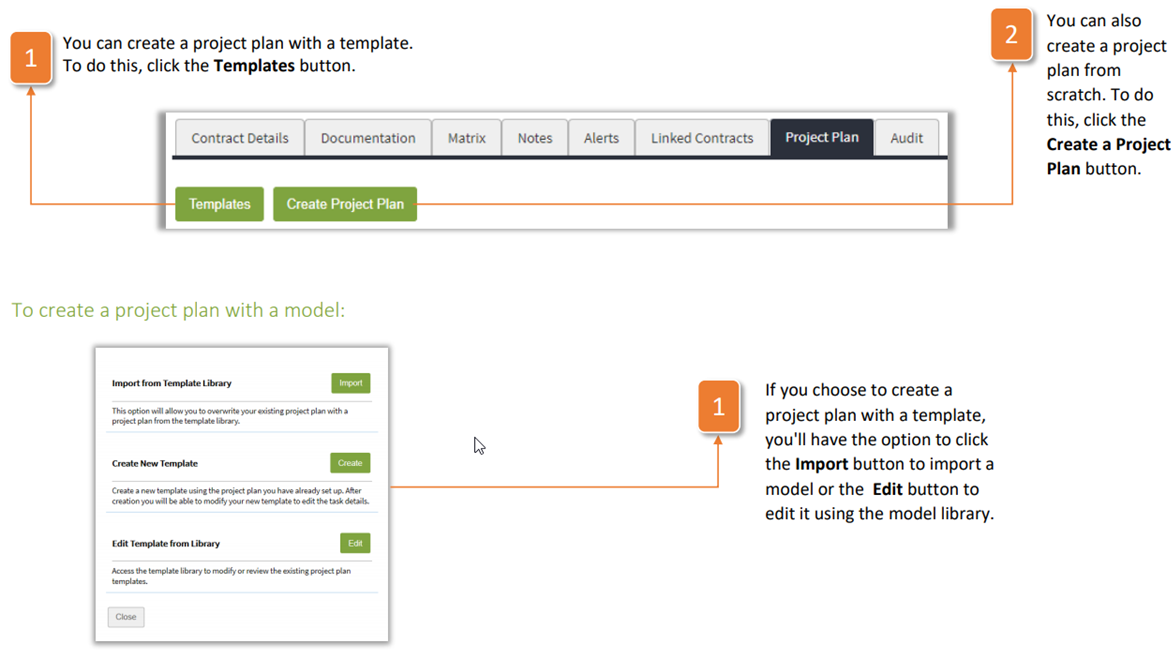
You can create a project plan with a template. To do this, click the Templates button.
You can also create a project plan from scratch. To do this, click the Create a Project Plan button.
To create a project plan with a model:
- If you choose to create a project plan with a template, you'll have the option to click the Import button to import a model or the Edit button to edit it using the model library
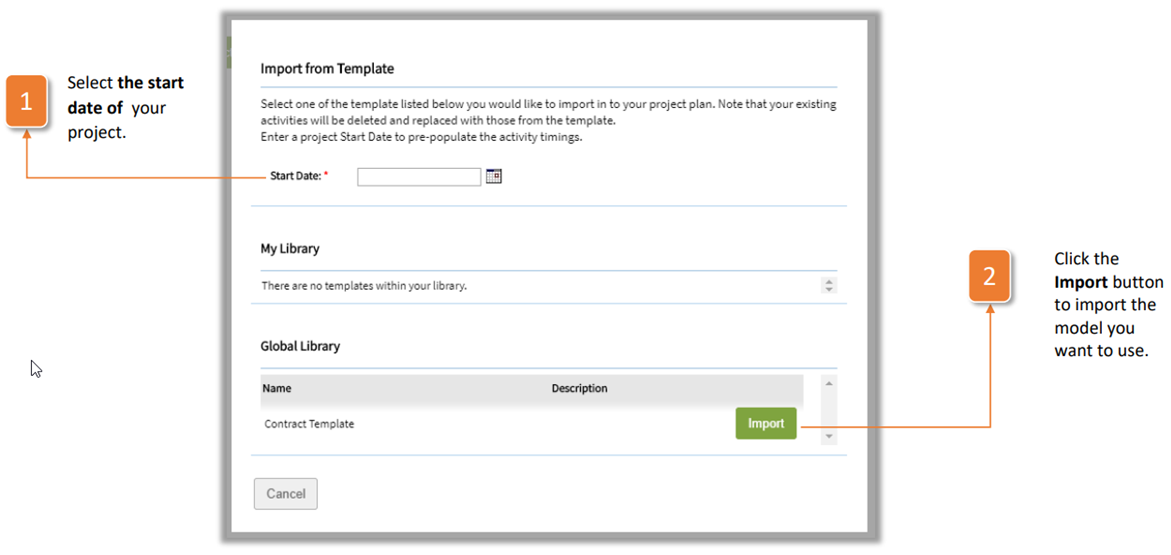
Importer of a model :
- Select the start date of your project.
- Click the Import button to import the model you want to use.
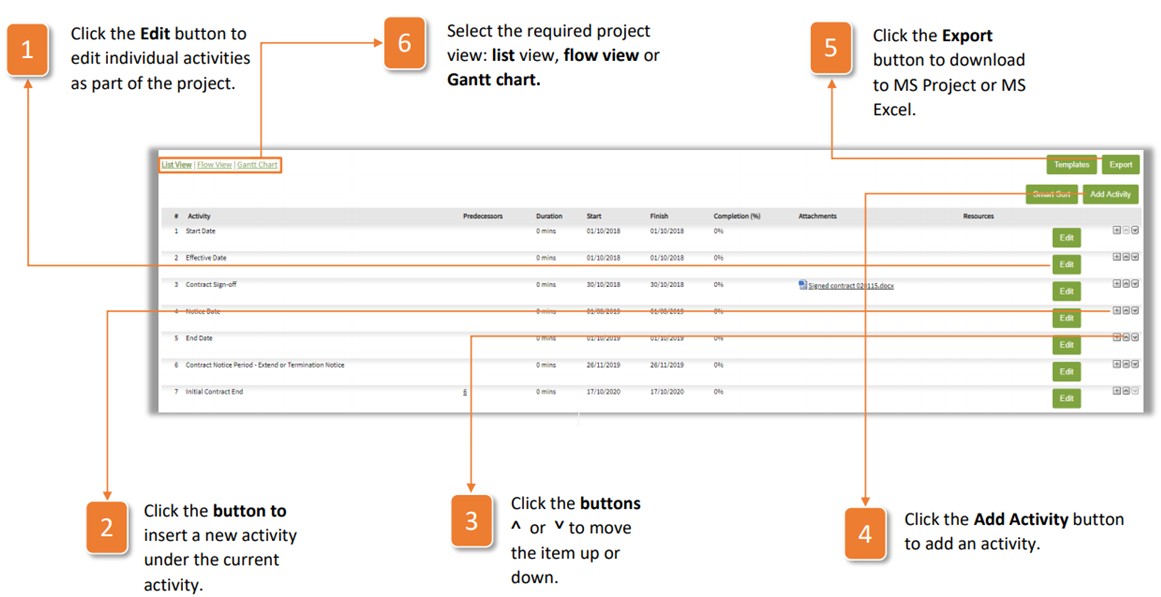
From there, you can do the following:
- Click the Edit button to edit individual activities as part of the project.
- Click the button to insert a new activity under the current activity.
- Click the buttons ^ or ? to move the item up or down.
- Click the Add Activity button to add an activity.
- Click the Export button to download to MS Project or MS Excel.
- Select the required project view: list view, flow view or Gantt chart.
Was this article helpful?
That’s Great!
Thank you for your feedback
Sorry! We couldn't be helpful
Thank you for your feedback
Feedback sent
We appreciate your effort and will try to fix the article