When you cannot find specific master data in MediusFlow, follow the steps below to start troubleshooting the issue.
Analyze if the missing data is listed in Import Management
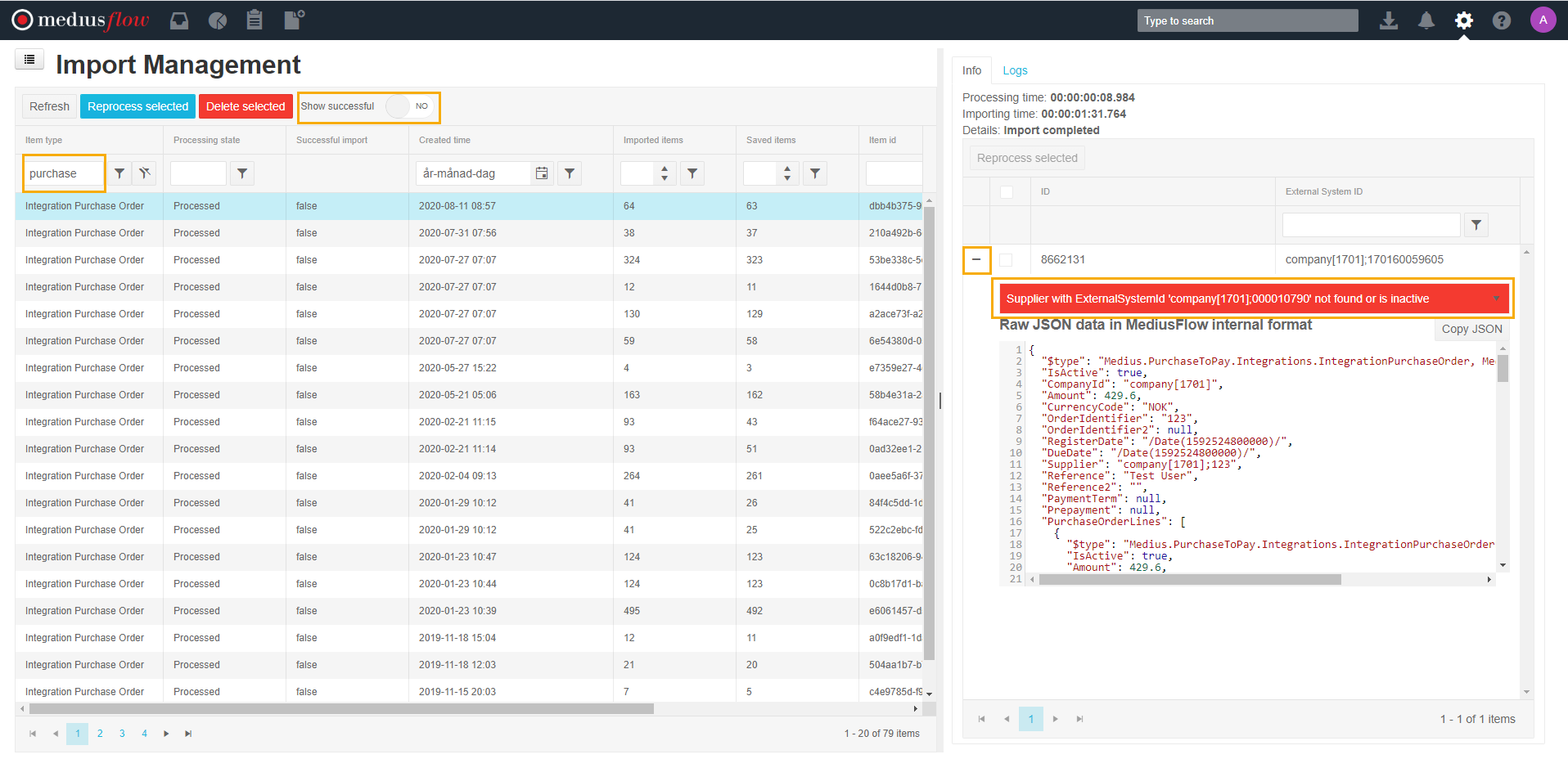
Navigate to Administration > Import management.
Use the columns to filter for the missing master data type. If you cannot find a relevant data entry, move on to Make sure that Medius integration services are running.
If there is a failed master data import job for the relevant data type, click it. A panel on the right is displayed. It lists all data items included in the selected job.
Expand the data item view by clicking the plus sign next to the ID for the given row. An error message will inform you what the problem with the master data is. This might be, for example, a missing supplier or incorrect characters used in the data.
Make sure that Medius integration services are running
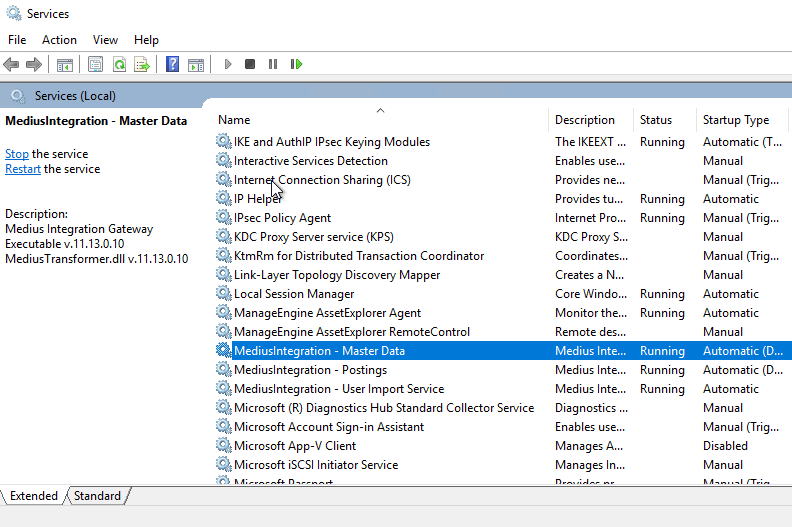
Make sure that the Medius master data integration services are running on your servers. Note that only Medius services which have the Startup Type Automatic and Automatic (Delayed Start) should be started. Do not start a service if it has any other Startup Type.
If the service is already running, try to restart it.
Wait for the next scheduled master data import run and see if you can find the data in MediusFlow. Remember to check if the data is listed in Administration > Import management as described in Analyze if the missing data is listed in Import management.
See below for naming conventions for the Medius master data integration service. The relevant service names usually include Prod for production environment and Test or QA for the QA environment. Note that the integration service does not always have master data mentioned in its name. This can be the case when the service is used for both bookings and master data import.
MediusIntegrationProd - Master Data
Medius Integration Cloud Service - Prod
MediusMiCloudProd
MediusflowGatewayProd - Masterdata
MIGforMasterdataProd
Update the data in your ERP
The MediusFlow integration often runs on a last changed date and time basis. This means that only data changed after the last scheduled import run will be imported.
To mark the master data in your ERP as recently changed, change a value on the data item and save.
Change the value back to its correct value and save again.
Wait for the next scheduled master data import run and see if you can find the data in MediusFlow. Remember to check if the data is listed in Administration > Import management as described in Analyze if the missing data is listed in Import management.
If you need further help with troubleshooting, contact Medius support.
Was this article helpful?
That’s Great!
Thank you for your feedback
Sorry! We couldn't be helpful
Thank you for your feedback
Feedback sent
We appreciate your effort and will try to fix the article