Users in MediusFlow and Active Directory are linked by the ExternalSystemId in MediusFlow which corresponds to the UPN in Active Directory.
If the UPN in Active Directory is changed, the integration for user import will not find a corresponding ID in MediusFlow. As a result, the users will be imported as if they were new. The Username in Active Directory is usually not changed resulting in a duplicate error in the MediusFlow database since the Username for all users in MediusFlow must be unique.
If you have already changed the UPN in Active Directory, users in your environment might encounter problems logging in. Failed user import jobs are also listed in Import Management.
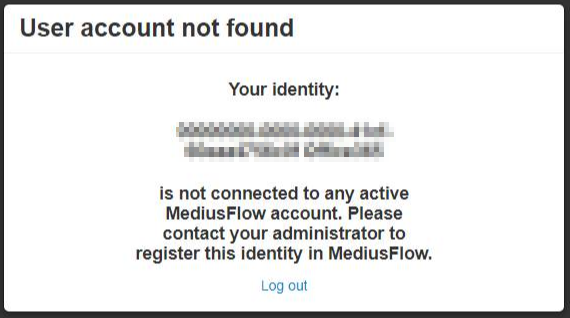
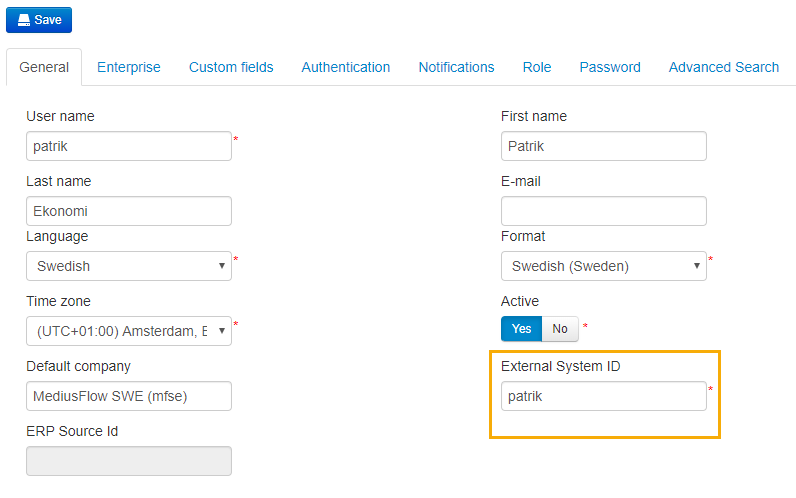
To allow the user to log in again, navigate to Administration > User. Select the user and change their ExternalSystemId to the new UPN. Click Save.
Find the failed import in Administration > Import management.
Note
If there is no corresponding failed user import job, proceed with updating all data for the user in MediusFlow manually. Make sure not to forget the data in the Authentication tab. It will need to be updated with the new UPN information.
To find the failed user import jobs more easily, filter the list by using the Item type column and by setting the Show successful toggle to No.
If there is more than one failed user import job with a relevant creation time listed, click the failed import jobs to see the user data content listed to the right.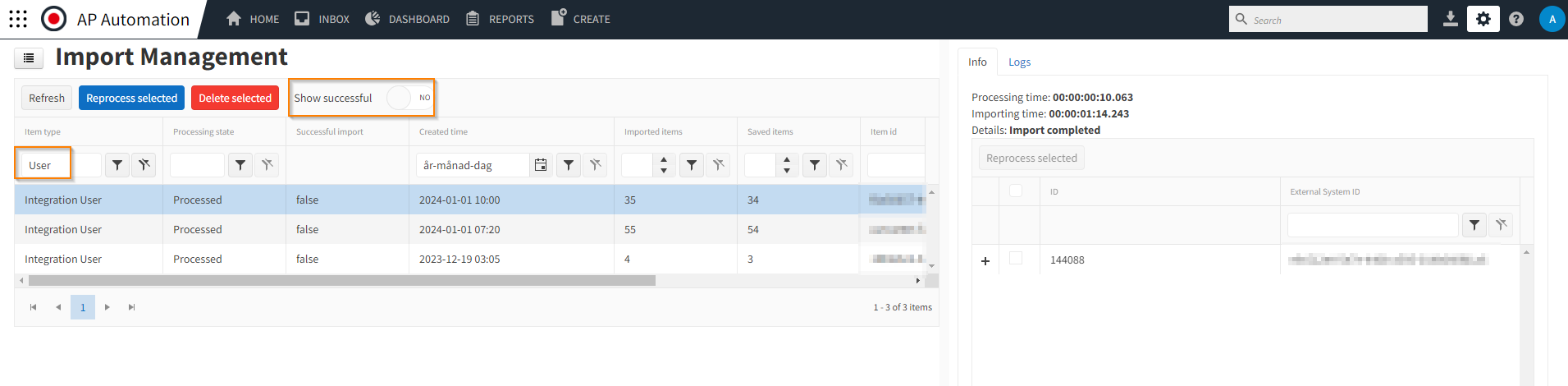
To reprocess a specific user, check the checkbox next to the specific line and click Reprocess selected. It is possible to select all lines within an import job by checking the box in the top left corner. This is useful if you want to select almost all users in an import job. In that case, check the top left checkbox and uncheck the boxes next to the user data you do not want to reprocess.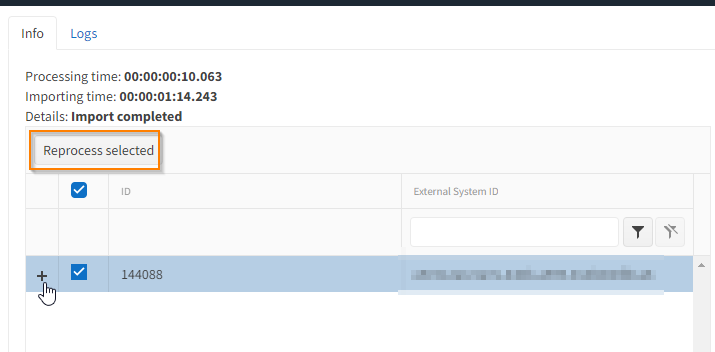
To reprocess all user data in one import job, select the job by clicking it on the list. Click Reprocess selected.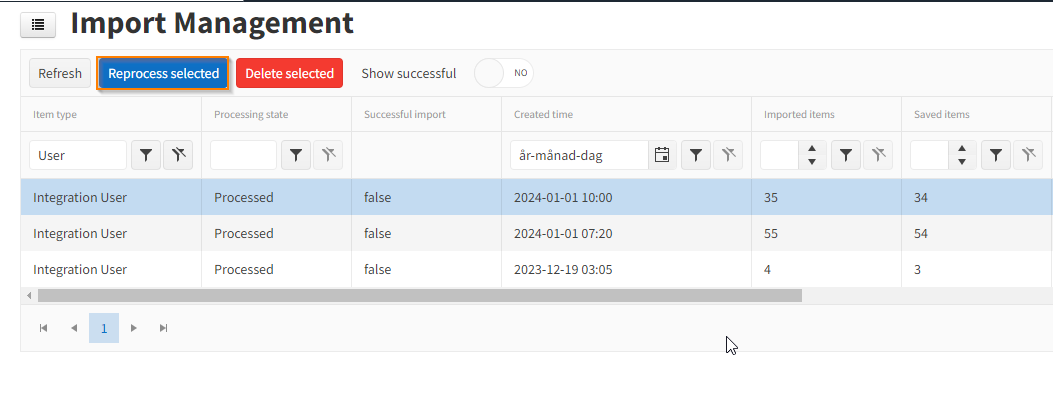
Set the Show successful option to Yes and click Refresh to see a new import job for user data listed. Wait for a moment while the job is reprocessed and click Refresh again. Make sure that the import job is successful.
Verify the user data update by looking at the user settings in Administration > User. Make sure that the information in the Authentication tab is updated with the new UPN information.
Ask the user to log in again. It might be necessary to clear the user's web browser cache before trying to log in again.
For more information about import management, see Import management.
Was this article helpful?
That’s Great!
Thank you for your feedback
Sorry! We couldn't be helpful
Thank you for your feedback
Feedback sent
We appreciate your effort and will try to fix the article