Different logs help solve different issues in Readsoft INVOICES, and they are placed in different folder paths.
Common application errors
On a machine with INVOICES installed, navigate to C:\Users\Public\READSOFT\INVOICES or equivalent.
Open the eilocal.ini file.
Note the LogFile= folder path and navigate to this path.
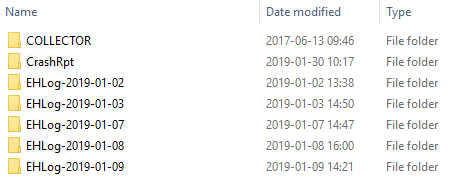
Here you can find folders that contain common application logs. These folders use the EHLog-YYYY-MM-DD naming structure. Analyze these logs for for common errors, like:
a folder path is not reachable by the Interpret or Transfer module
the Interpret or Transfer module cannot process a specific invoice
a database path cannot be reached
Issues with fetching and interpreting invoices from emails, as well as errors related to COLLECTOR plug-ins
Open the Manager module.
Select Plug-ins > ReadSoft COLLECTOR.
Select the Logging tab.
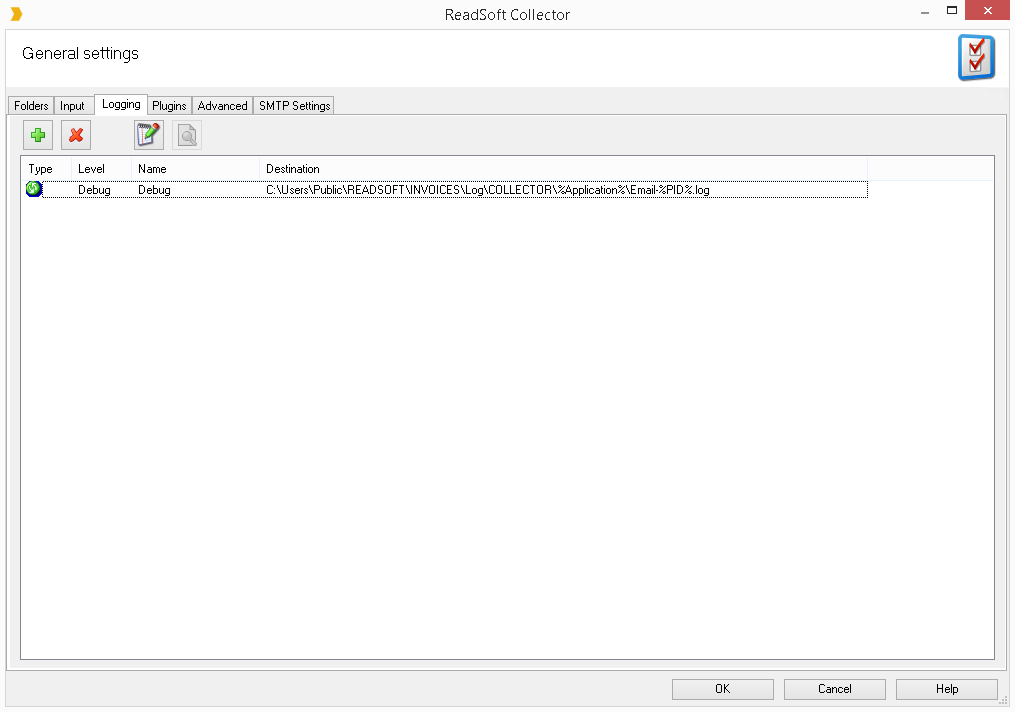
In the Destination column you can see the path to COLLECTOR-related log files. Navigate to this path by removing \%Application%\Email-%PID%.log. For example, if the path is \\SERVER\ReadsoftFiles\INVOICES_GLOBAL\Log\COLLECTOR\%Application%\Email-%PID%.log, you should navigate to \\SERVER\ReadsoftFiles\INVOICES_GLOBAL\Log\COLLECTOR\.
This path contains sub-folders for each INVOICES module. These sub-folders also contain log files related to the COLLECTOR plug-in and the specific module.
Note that it is common for the COLLECTOR log folder to be placed in the LogFile= folder mentioned above.
Folder name clarifications:
eiitrp - Interpret module
eimngr - Manager module
eiopti - Optimize module
eitran - Transfer module
eiveri - Verify module
The eiitrp log files are the most important when analyzing problems with fetching and interpreting invoices from emails. Common errors include:
invoice file could not be opened
a specified folder path on the mail server cannot be found
mail server cannot be reached
the user account utilized by the COLLECTOR plug-in cannot log in to the mail server
System overview and problems with specific jobs
Newer versions of INVOICES offer service logs which you can find in the Manager module. These logs are useful to get an overview of the system - e.g. which services are currently running which specific job, and if previously run jobs succeeded or had problems.
Open the Manager module.
Select Administration > Services > Service log.
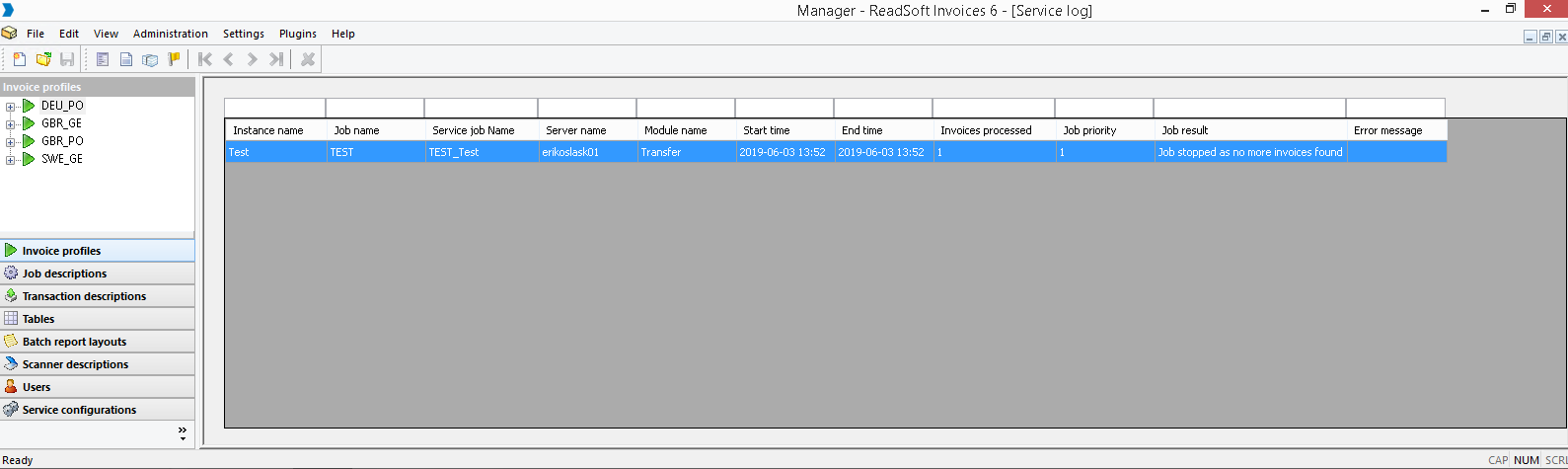
Use the columns to filter the service log by typing in keywords in the box over the column name. Press the column name to sort the service logs according to the column.
Analyze the Job result and Error message fields for rows where problems have been found for the particular module and job.
Note that in the Error messages column, error messages that are logged in the EHLog log files are shown for the specific job.
Common errors include:
a job that has been stopped because of a crash or a timeout (jobs like this have an empty End time column).
Was this article helpful?
That’s Great!
Thank you for your feedback
Sorry! We couldn't be helpful
Thank you for your feedback
Feedback sent
We appreciate your effort and will try to fix the article