Tenders are central to procurement and form a crucial part of the Source to Contract cycle. Your events must be contained in a project folder. This helps to organise all of your system events and so before creating a tender, you must first create a project folder. To do so, follow the steps below:
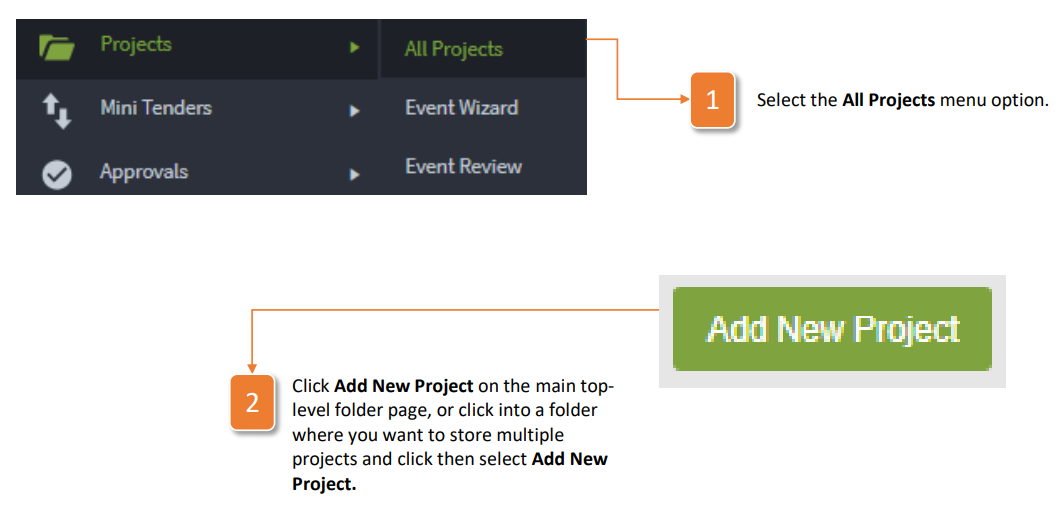
- Select the All Projects menu option.
- Click Add New Project on the main toplevel folder page, or click into a folder where you want to store multiple projects and click then select Add New Project.
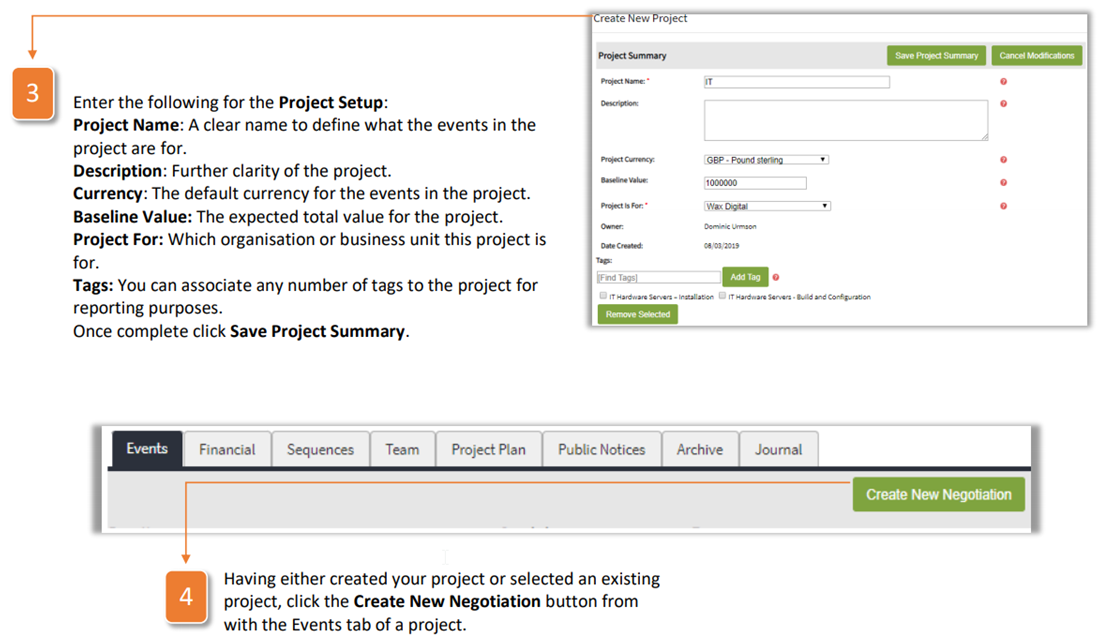
- Enter the following for the Project Setup:
Project Name: A clear name to define what the events in the project are for.
Description: Further clarity of the project.
Currency: The default currency for the events in the project.
Baseline Value: The expected total value for the project. Project For: Which organisation or business unit this project is for.
Tags: You can associate any number of tags to the project for reporting purposes. Once complete click Save Project Summary. - Having either created your project or selected an existing project, click the Create New Negotiation button from with the Events tab of a project.
The next step is to enter header information for the tender. Follow the steps below to do this:
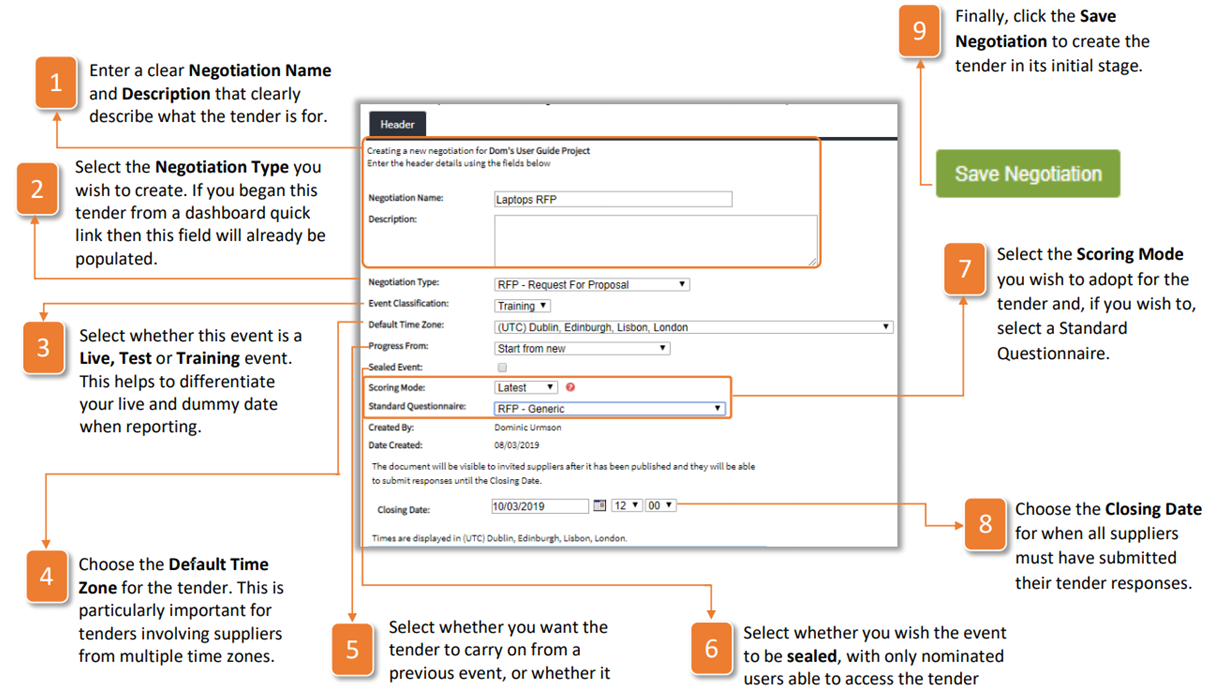
- Enter a clear Negotiation Name and Description that clearly describe what the tender is for.
- Select the Negotiation Type you wish to create. If you began this tender from a dashboard quick link then this field will already be populated.
- Select whether this event is a Live, Test or Training event. This helps to differentiate your live and dummy date when reporting.
- Choose the Default Time Zone for the tender. This is particularly important for tenders involving suppliers from multiple time zones.
- Select whether you want the tender to carry on from a previous event, or whether it should be a stand-alone event
- Select whether you wish the event to be sealed, with only nominated users able to access the tender responses after the tender close date.
- Select the Scoring Mode you wish to adopt for the tender and, if you wish to, select a Standard Questionnaire.
- Choose the Closing Date for when all suppliers must have submitted their tender responses.
- Finally, click the Save Negotiation to create the tender in its initial stage
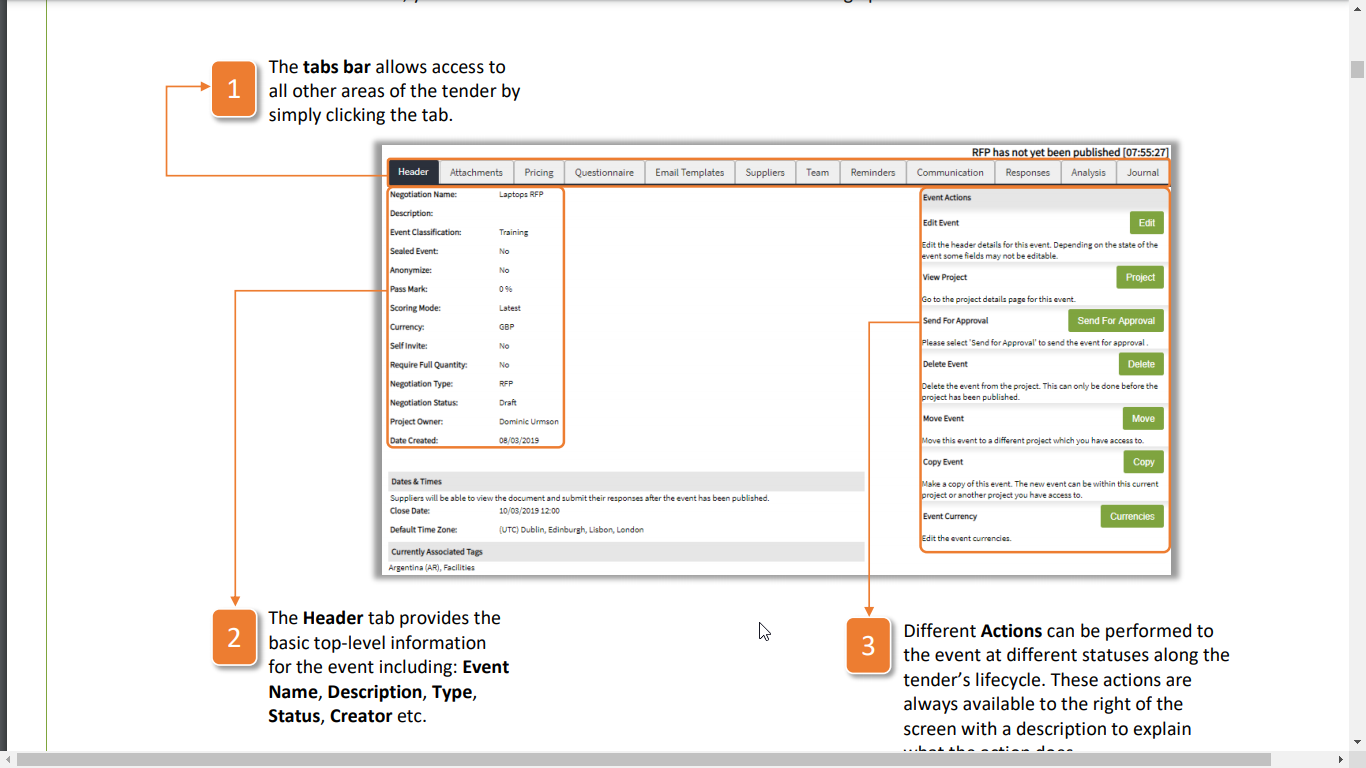
Once the tender has been created, you will be taken to the Header tab with the following options available:
- The tabs bar allows access to all other areas of the tender by simply clicking the tab.
- The Header tab provides the basic top-level information for the event including: Event Name, Description, Type, Status, Creator etc.
- Different Actions can be performed to the event at different statuses along the tender's lifecycle. These actions are always available to the right of the screen with a description to explain what the action does.
Was this article helpful?
That’s Great!
Thank you for your feedback
Sorry! We couldn't be helpful
Thank you for your feedback
Feedback sent
We appreciate your effort and will try to fix the article