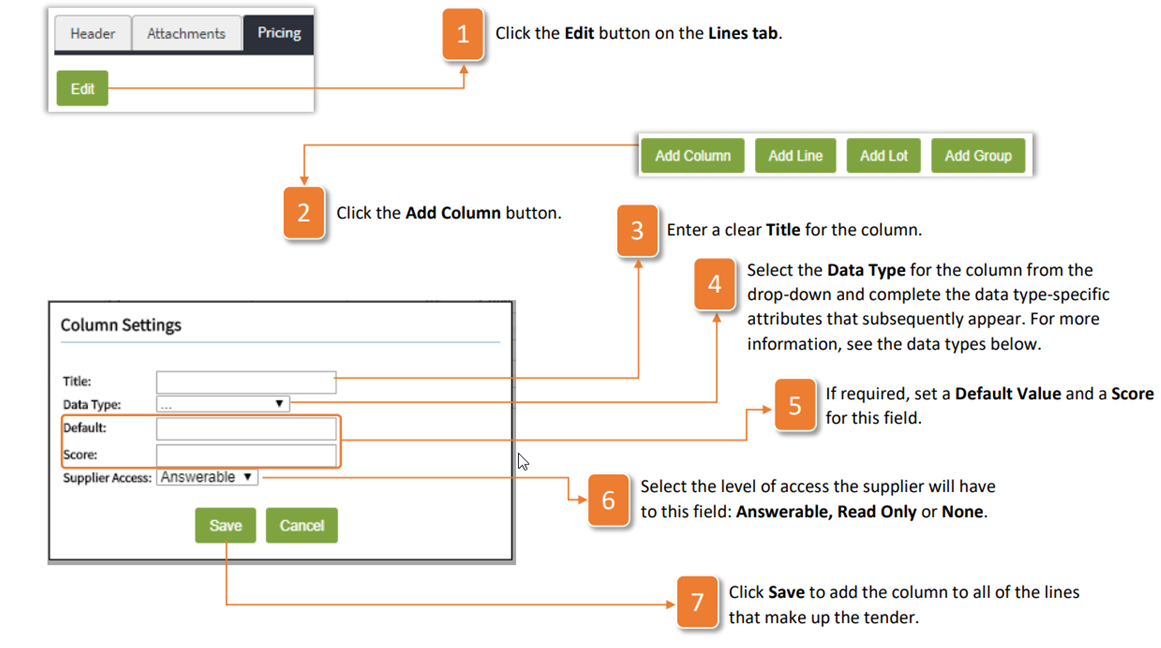
When creating the lines for your tender, you may wish to add extra columns of data. To add extra columns, follow the instructions below:
- Click the Edit button on the Lines tab.
- Click the Add Column button
- Enter a clear Title for the column
- Select the Data Type for the column from the drop-down and complete the data type-specific attributes that subsequently appear. For more information, see the data types below.
- If required, set a Default Value and a Score for this field.
- Select the level of access the supplier will have to this field: Answerable, Read Only or None.
- Click Save to add the column to all of the lines that make up the tender
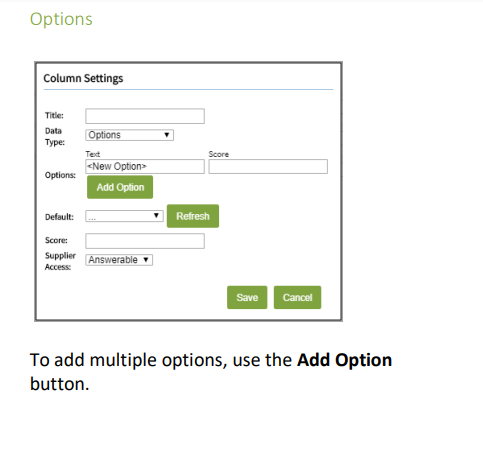
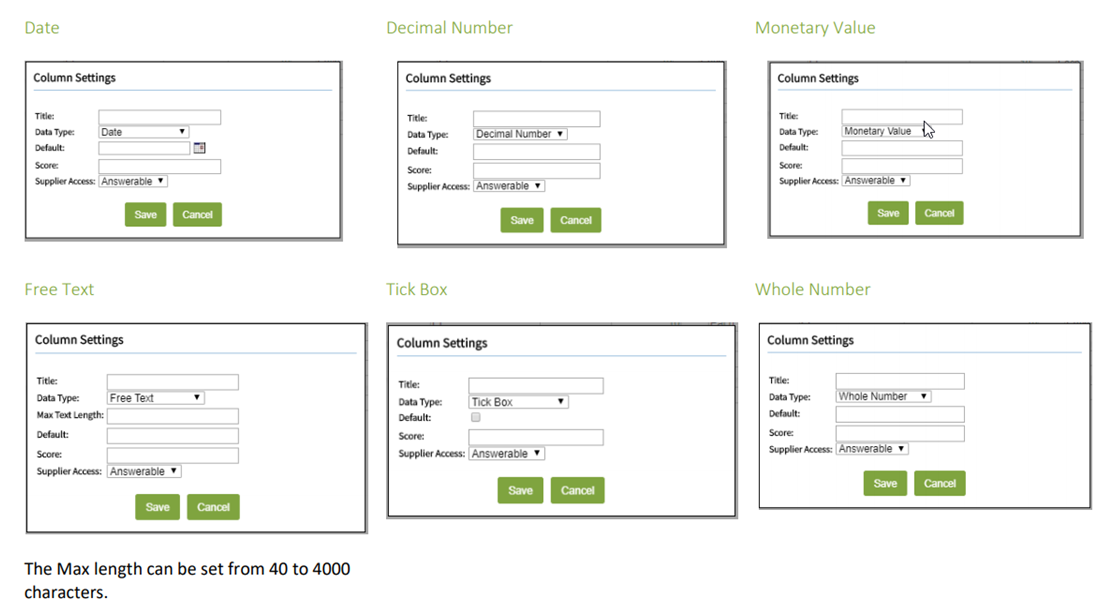
The following are the views you will see when selecting the different Data Types when creating a new column:
Was this article helpful?
That’s Great!
Thank you for your feedback
Sorry! We couldn't be helpful
Thank you for your feedback
Feedback sent
We appreciate your effort and will try to fix the article